

PUT File Upload
Summary
Uploads a file to a merchant application via use of a custom field.
PUT {cobrandSlug}/api/v2/MerchantApplications/{infiniceptApplicationId}/FileUploadsThe File Upload endpoint allows users to upload a file to a merchant application in any underwriting status.
Examples of files that may be helpful to upload to an application in preparation for the underwriting process include a copy of the merchant's driver's license, bank statement, voided check, and more. Once uploaded, your file is available in the New Accounts UI on the merchant application View Info window and Documents tab.
This endpoint offers file upload functionality only. The file must be encoded as HTML to pass within the request. The following file types are accepted: CSV, DOCX, GIF, HTML, JPEG, JSON, PDF, PNG, TSV, TXT, XML, and ZIP. The maximum accepted file size is 20 MB.
REQUIRED: File Upload Custom Field
A file upload custom field must be added to your cobrand by Infinicept to enable the functionality of this endpoint.
Each custom field accepts one uploaded file. Multiple custom fields may be added to your cobrand to support additional uploads. Uploading a file to a custom field that already contains an uploaded file will replace the original file.
Infinicept's Implementation team configures custom fields for clients. To implement this custom field for your cobrand, send us a request on the Customer Support Portal.
Parameters
Path Parameters
The following table describes the required path parameters.
| Path Parameters | Description |
|---|---|
| cobrandSlug | The unique cobrand identifier assigned by Infinicept. This value is available on the Settings page within your cobrand in the Account Settings > Url Slug field. |
| infiniceptApplicationId | The unique merchant application identifier assigned by Infinicept. This parameter is returned in the /MerchantApplication/Submit and /MerchantApplication/MerchantApplicationDetails responses and via the following webhooks: BatchedBoardingResults, BatchedUnderwritingResults, BoardingServiceStatusChange, ManualApplicationStatusChange, and ManuallyRunUnderwritingResults. |
Request Body Parameters
The following table describes the request body parameters.
| Request Body Parameters | Required / Optional | Type | Description |
|---|---|---|---|
| UserDefinedId | Required | string | The name of the file upload custom field configured within your cobrand to accept a file upload. Each custom field has a unique name. |
| FileName | Required | string | Enter a name for the file with the appropriate file extension, e.g., "DriversLicense.docx". Including the file extension is required. This file name appears on the merchant application View Info window and Documents tab within New Accounts. |
| FileContent | Required | string | A base64 encoded file. |
Sample Request
The following is a sample request sent to the endpoint.
{
    "UserDefinedId" : "File.Upload",
    "FileName" : "DL.docx",
    "FileContent" : "UEsDBBQABgAIAAAAIQCj77sdZQEAAFIFAA"
}
Sample Response
The following is a sample response from the endpoint.
{
    "InfiniceptMerchantIdentifier" : "3c65ec0c-1215-4bca-af55-8052314b6b61"
}
Response Definitions
The following table describes the item within the response.
| Response Item | Type | Description |
|---|---|---|
| InfiniceptMerchantIdentifier | string | The unique merchant application identifier assigned by Infinicept. This is the same value as the infiniceptApplicationId. |
Response Codes
The following table describes responses available from the endpoint.
| Code | Description | Message |
|---|---|---|
| 202 | Accepted | A successful response returns the InfiniceptMerchantIdentifier. |
| 400 | Bad Request | The following error is returned, "Unable to upload a file for merchant application with the status of {status} for {infiniceptApplicationId}." |
View Your Uploaded File in the New Accounts UI
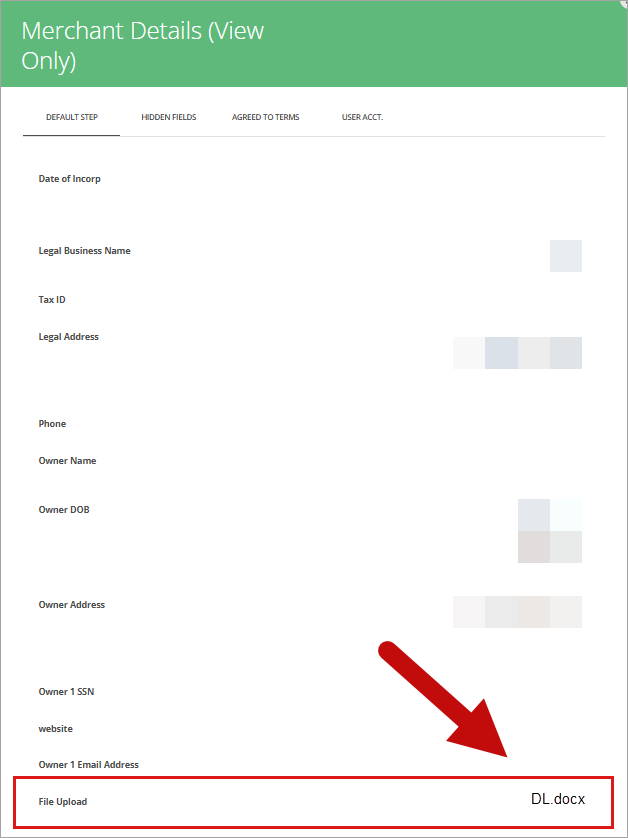
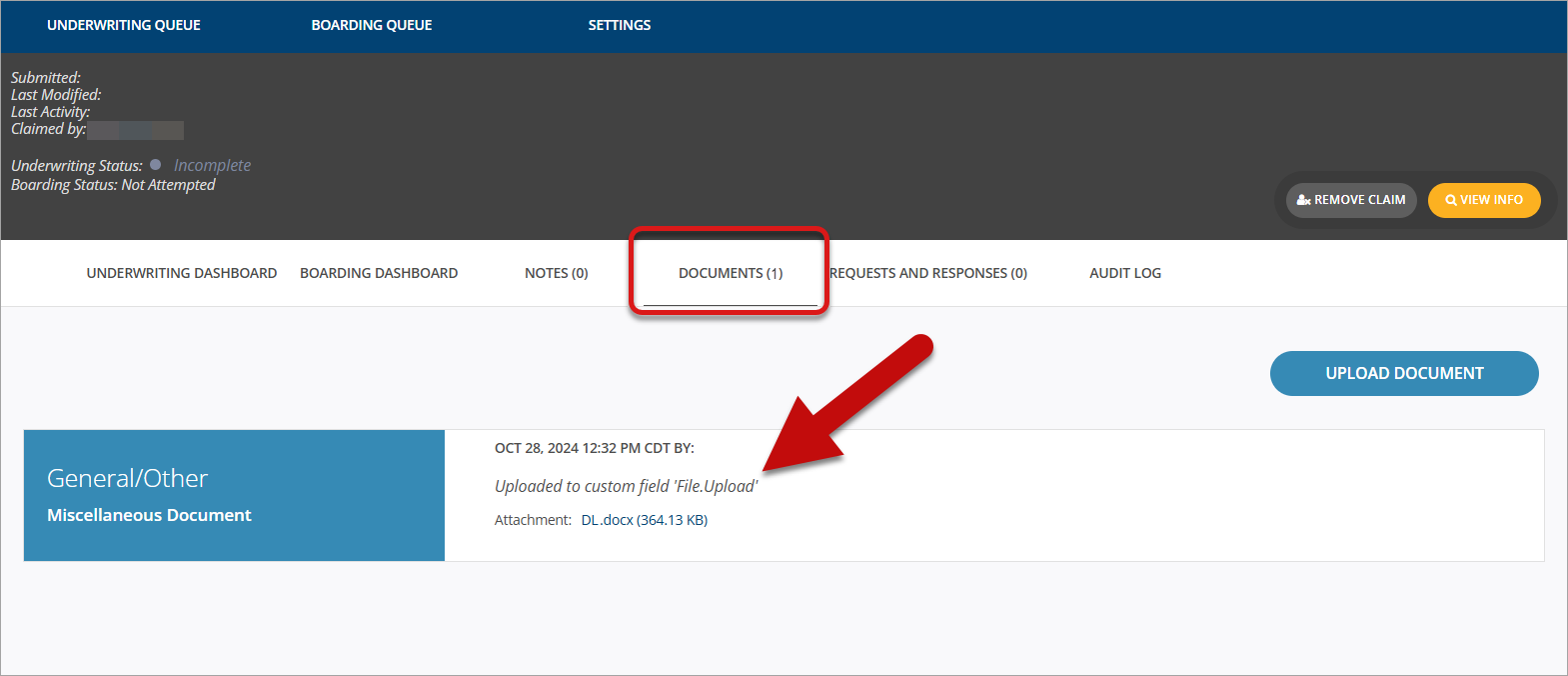
Once uploaded, New Accounts cobrand users can view the name of the file on the merchant application View Info window. Cobrand users can download the file from the Documents tab by selecting the file name. See the examples below.
View Info window
Documents tab
Updated 8 months ago