

Webhook Delivery Status, Replay, and More
New Accounts Webhooks
Monitor webhook delivery and replay failed events — directly from your New Accounts cobrand.
When a webhook fails to deliver, it can silently stall your onboarding workflow. With Webhook Management, client-level users and Cobrand Admins can view the delivery status of every webhook sent for a merchant application and replay any failed webhooks on demand. This means faster issue resolution, fewer support tickets, and full visibility into your integration's event flow.
What's New
- Webhook Delivery Status — See all webhook events for a merchant application in one place on the new Webhooks tab. This tab displays every webhook event triggered for an application, including the Type, Status (
Sent,Errored,Not Sent), and Sent Date. Select Details to review your webhook's response (if available).
- One-Click Replay — If a webhook fails to deliver, click Replay to resend it immediately. The system queues the webhook for re-delivery using the original URL and secret from the webhook subscription that was active when the event was first sent (Settings > Webhook Configuration). A new delivery attempt record is created so you can view the results.
- Persistent Webhook History — All webhook delivery records — including original attempts and replays — persist on the application. Review past webhook events at any time without contacting support.
Who Can Use This
This feature is available to New Accounts client-level users and Cobrand Admins.
View Webhook Delivery Status
Navigate to the application's Underwriting Dashboard > Webhooks tab. Here you see a list of webhook events triggered for the application. Use the Type and Status dropdown menus to filter the events listed.
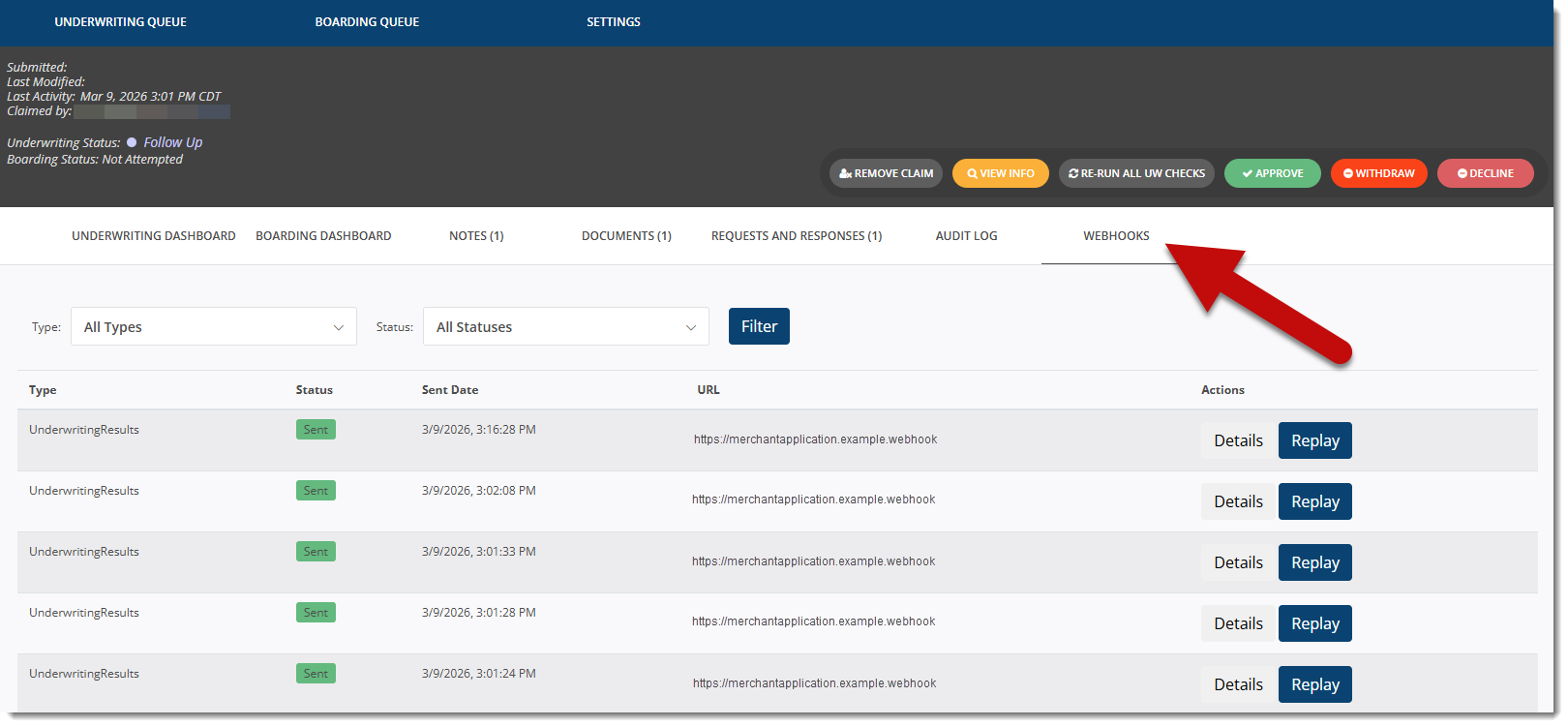
Column Definitions
| Column | Description |
|---|---|
| Type | The webhook event that was triggered. All New Accounts webhook types are supported. |
| Status | The current state of the delivery attempt. Possible values: Not Sent, Sent, Errored. See Status Definitions below. |
| Sent Date | The time and date of the delivery attempt, displayed in your local time zone. |
| URL | The URL you configured in Settings to receive webhook events. |
| Actions | Select Details to review additional information. Select Replay to send the webhook again. |
Status Definitions
| Status | Meaning |
|---|---|
Not Sent | The initial status for the webhook event. This should only appear briefly before updating to Sent or Errored. If it persists, the webhook did not send and should be replayed. |
Sent | The webhook event sent successfully. |
Errored | An error occurred during webhook delivery. Open the Webhook Details window to review the Status Code and Response Body, which may help identify the issue. Replay the webhook to try again. |
Review Webhook Details
Click on any webhook entry to see its full details, including the request body (what was sent from Infinicept) and the response body (the response your webhook URL provided in return, if available). This is especially useful for diagnosing why a particular webhook failed — for example, if your endpoint returned a 500 error or timed out.
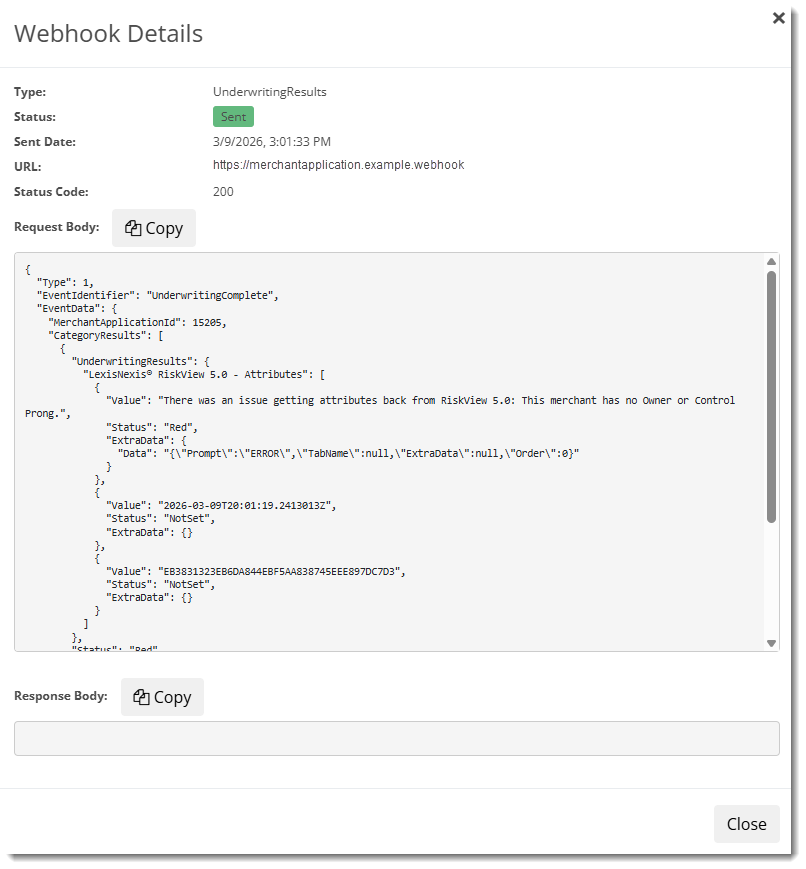
Detail Fields
| Field | Description |
|---|---|
| Status Code | The HTTP status code returned by your webhook URL (200, 500, timeout, etc.). |
| Request Body | The webhook payload. For some webhooks, you may need to scroll down to view the full payload. |
| Response Body | The response returned by your webhook URL (if available). |
Replay a Failed Webhook
Important: Replayed webhooks use the original URL and secret from the time the event was first generated. If you have since updated your webhook subscription, the replay will not use the updated configuration. This ensures the replayed payload is identical to the original attempt
If a webhook failed to deliver, follow these steps to replay it:
- Navigate to the application's Underwriting Dashboard > Webhooks tab.
- Locate the
Erroredwebhook in the list and click Replay. The Replay button updates to Queued while the system attempts re-delivery. - Once delivery completes, the button changes back to Replay. Refresh your browser window to see the new delivery attempt record added to the top of the list. Select Details to view more information.
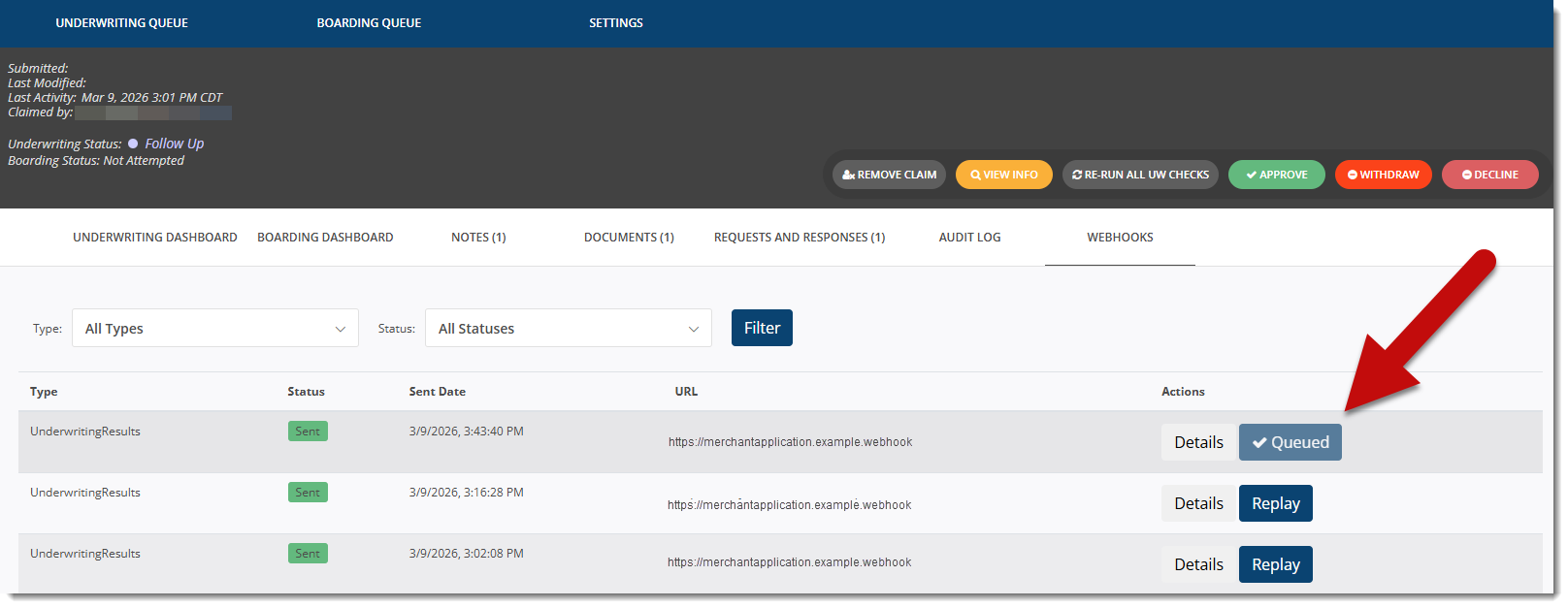
Troubleshooting
"I need to verify that a webhook was actually sent."
Review the application's webhook events on the Webhooks tab. Every attempt — including timestamp and response code — is logged, giving you a complete audit trail without needing to contact support.
"My endpoint was temporarily down."
Once your endpoint is back online, navigate to the affected applications and replay any webhooks that failed during the outage. Each replayed webhook creates a new attempt record so you can confirm successful delivery.
"A webhook shows Errored but my endpoint is operational."
Open the Details page for the Errored delivery attempt and review the Status Code and Response Body fields for additional information.
Summary
- Webhook history is persistent. All delivery records — including replayed attempts — remain accessible on the application via the Webhooks tab.
- Replays are immediate. When you click Replay, the webhook is queued for re-delivery right away. Refresh your browser window to view the replayed delivery result.
- Original configuration is used. Replayed webhooks use the same URL and secret as the original event. Changes to your webhook subscription after the original event do not affect replays.
Support
💬Have a question? Contact us on the Customer Support Portal.
🔹Learn about updates in our Changelog.
Updated 6 months ago