
Manage API Keys
Your application can authenticate to the Backoffice API using API keys. For all API requests, the key ID is required for the X-AuthenticationKeyId header, and the key secret is required for the X-AuthenticationKeyValue header.
Key Access
Backoffice API keys grant full access to interact with the product and its data through GET, PATCH, PUT, DELETE, and POST endpoints.
Manage API Keys
Management of API keys is available on the Settings page of Backoffice. This area is available to the System Administrator user role only. Self-service is available to view your list of keys, issue a key and revoke a key. Keys do not expire.
View List of Keys
Follow the steps below to view your list of API keys:
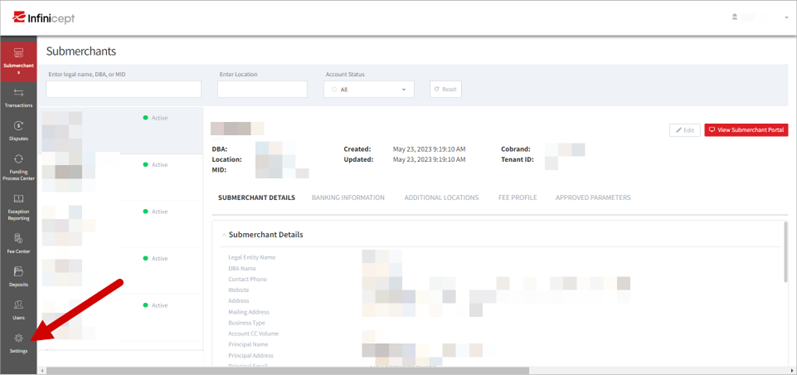
- Once logged in to Backoffice, select Settings from the sidebar.
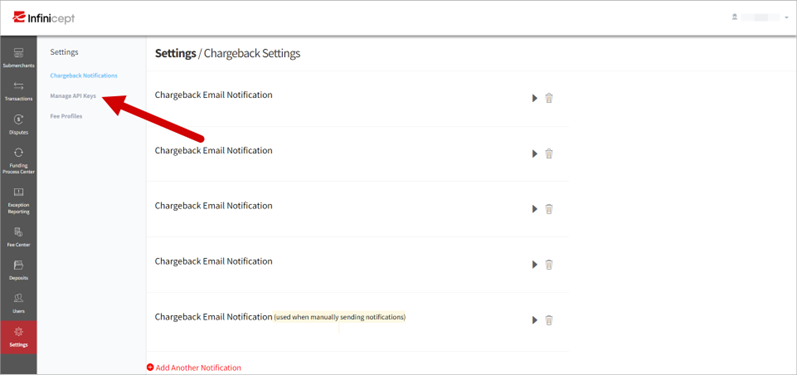
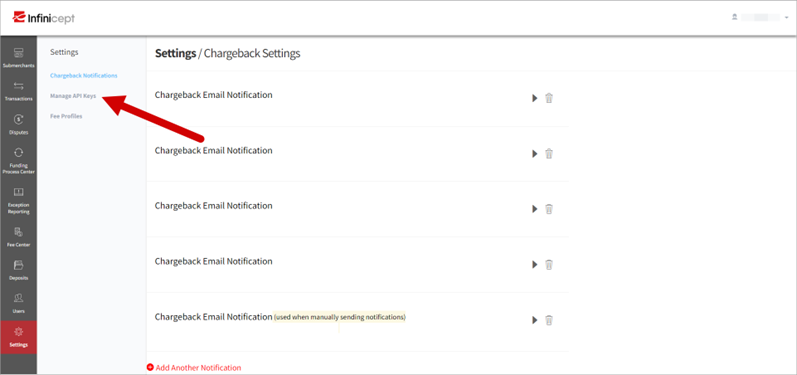
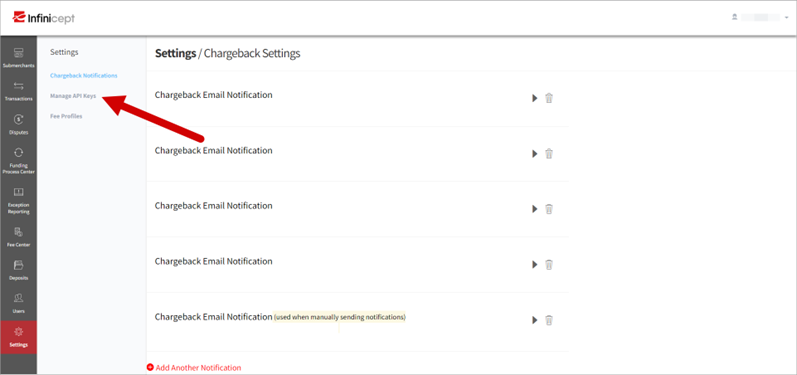
- From the Settings list next to the sidebar, select Manage API Keys.
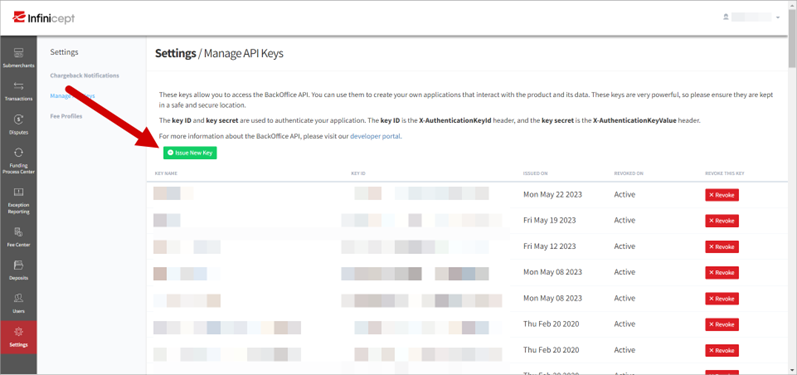
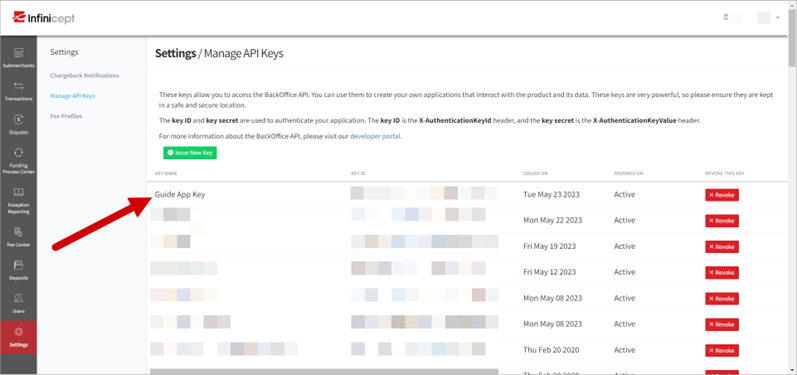
- Your list of keys opens under the Issue New Key button. See the column definitions below.
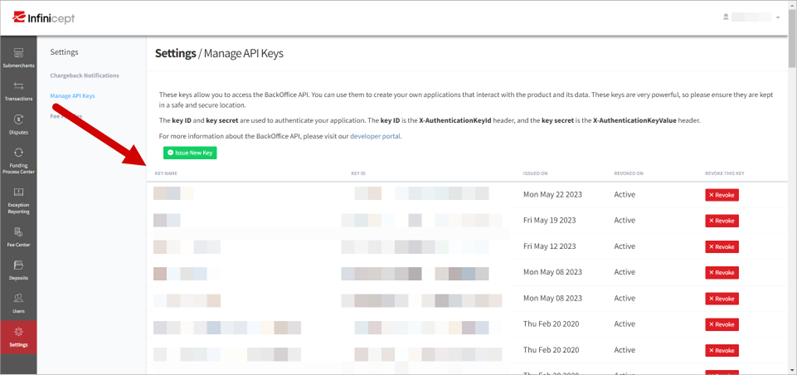
- Key Name: the name assigned to the key when it was issued
- Key ID: the 36-character alphanumeric value assigned to the key
- Issued On: the date the key was issued
- Revoked On: the date the key was revoked. If the key has not been revoked, this column displays “Active.”
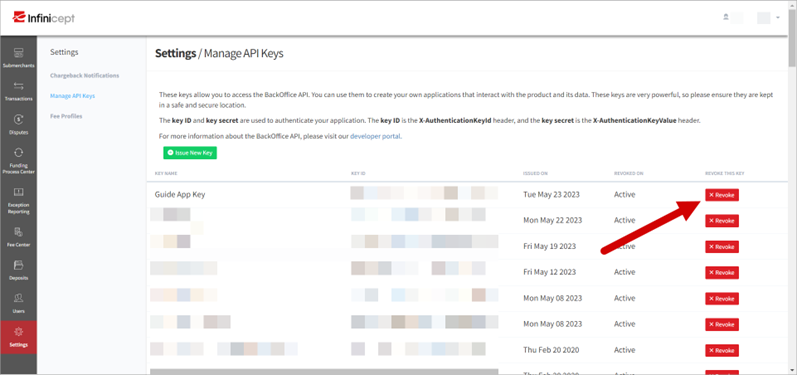
- Revoke This Key: provides the Revoke button. Keys that have been revoked cannot be activated or revoked again and the Revoke button is not displayed.
Issue a Key
Follow the steps below to issue an API key:
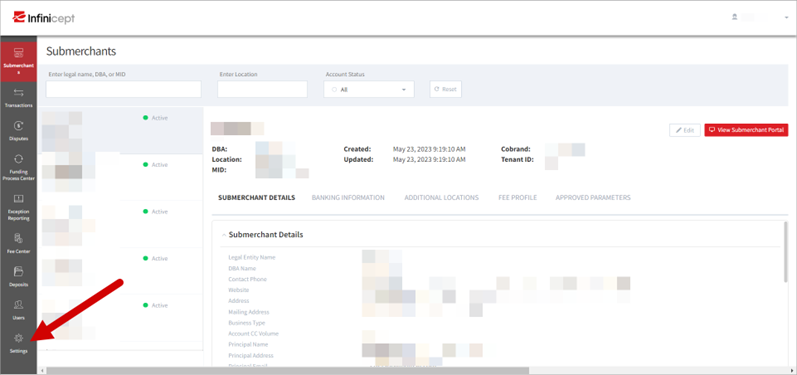
- Once logged in to Backoffice, select Settings from the sidebar.
- From the Settings list next to the sidebar, select Manage API Keys.
- Select Issue New Key.
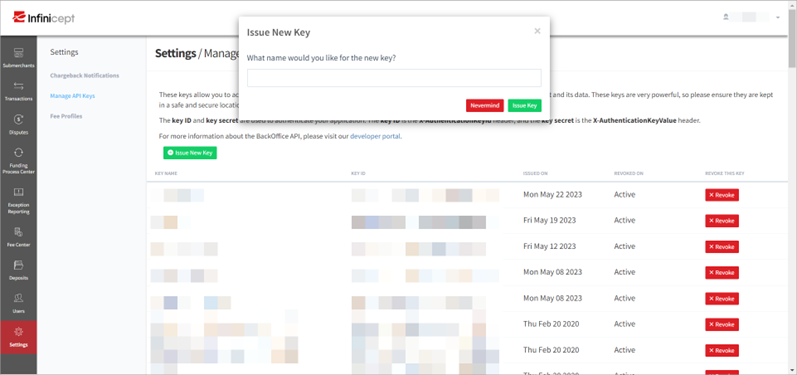
- On the Issue New Key window that opens, enter a key name. We recommend naming the key in such a way that you can easily recognize the application for which it is used.
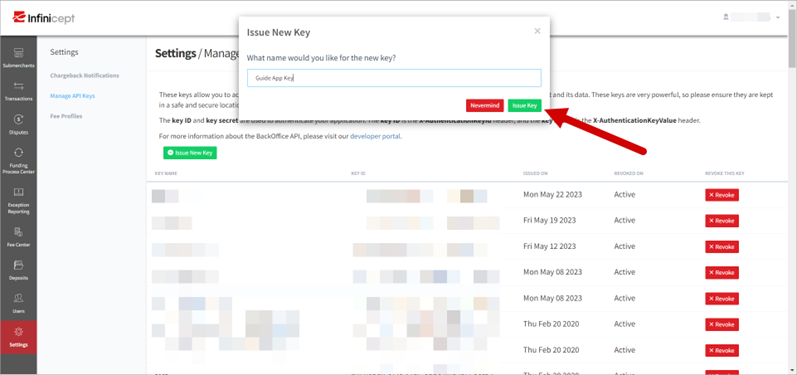
- When complete, select Issue Key. If you wish to cancel this action, select Nevermind.
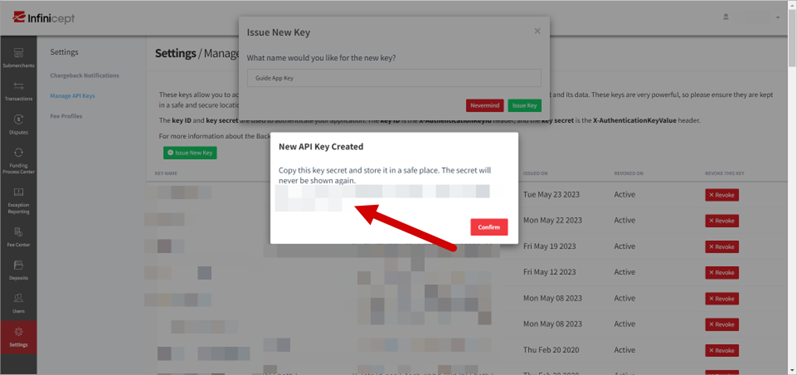
- On the New API Key Created window that opens, copy, paste, and save the key secret into a secure, private location. The key secret is 64 alphanumeric characters.
NOTE: The secret will never be shown again after you close this window. Infinicept cannot access key secrets.
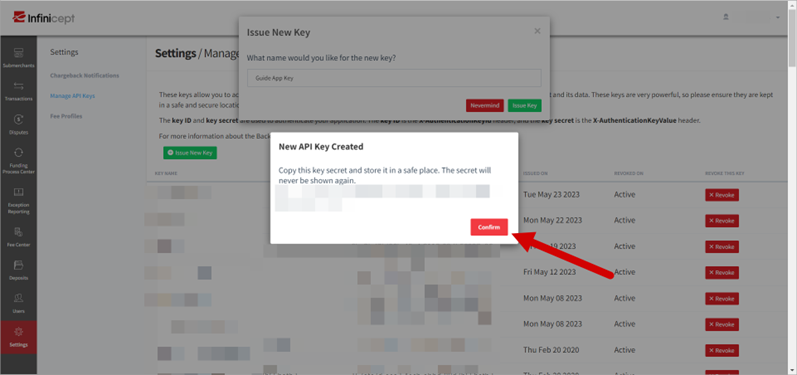
- With your key secret saved, select Confirm to close the window.
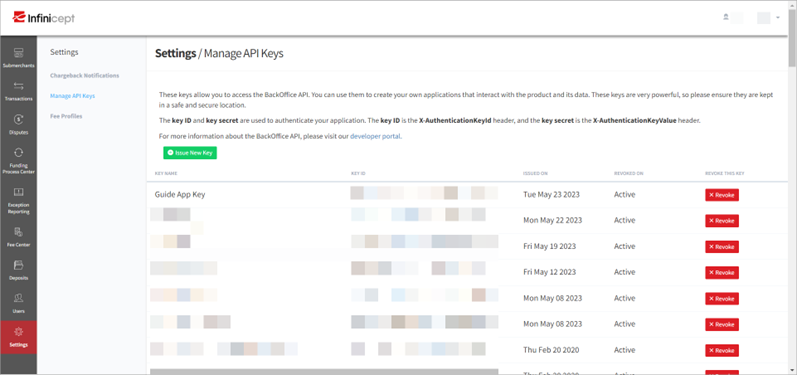
- The Manage API Keys page automatically refreshes, and your new key appears at the top of the list. From here, you can view your key ID.
Revoke a Key
Follow the steps below to revoke an API key:
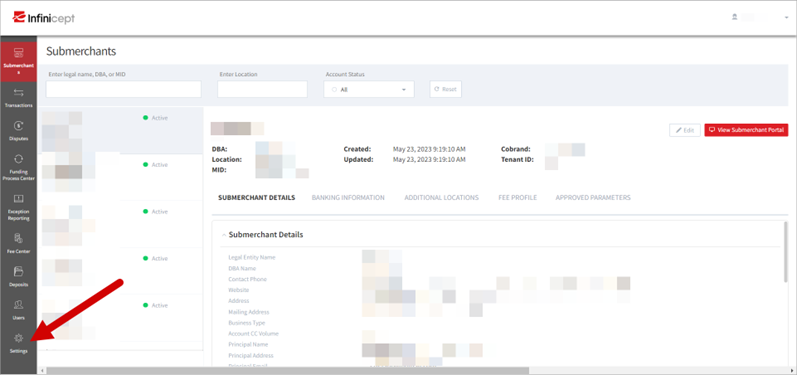
- Once logged in to Backoffice, select Settings from the sidebar.
- From the Settings list next to the sidebar, select Manage API Keys.
- From your list of keys, identify the key you wish to revoke.
- In the Revoke This Key column, select Revoke.
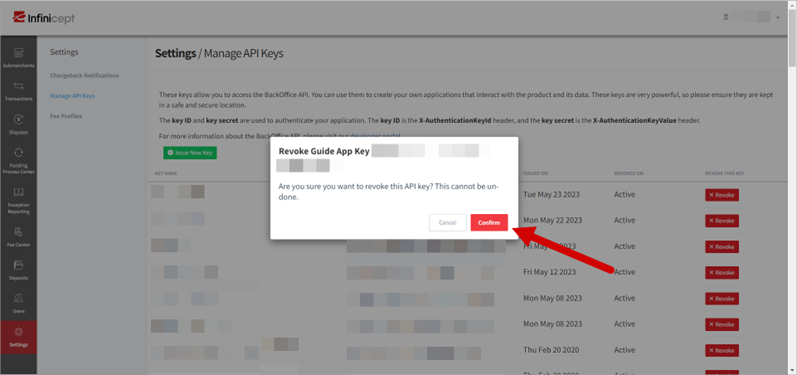
- On the Revoke window that opens, the key name and key ID display.
NOTE: Revoking a key is permanent and cannot be undone.
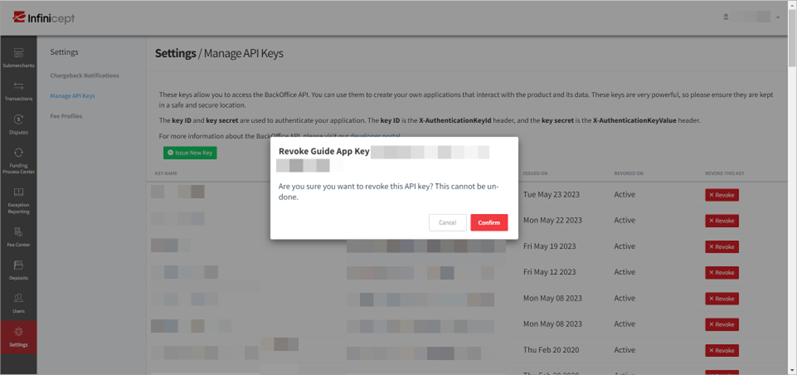
- Select Confirm to revoke the key.
- The Manage API Keys page automatically refreshes, and the revoked key is moved to the bottom of the list. The Revoked On column is updated with today’s date.
Authentication Error
A 401-Unauthorized error is returned if an API request fails to authenticate using incorrect or omitted keys in the request header. This can be resolved by using the correct keys in your request.
Updated 5 months ago