

AI Dropdown Menu
AI and LLM Tools
Overview
The AI Dropdown Menu is available on every page in the Guides and API Reference sections of the Infinicept Developer Portal. It provides one-click access to open the current page in ChatGPT or Claude, or copy or view it as clean Markdown, directly from the portal for use in your own workflow with no setup required.
Menu Options
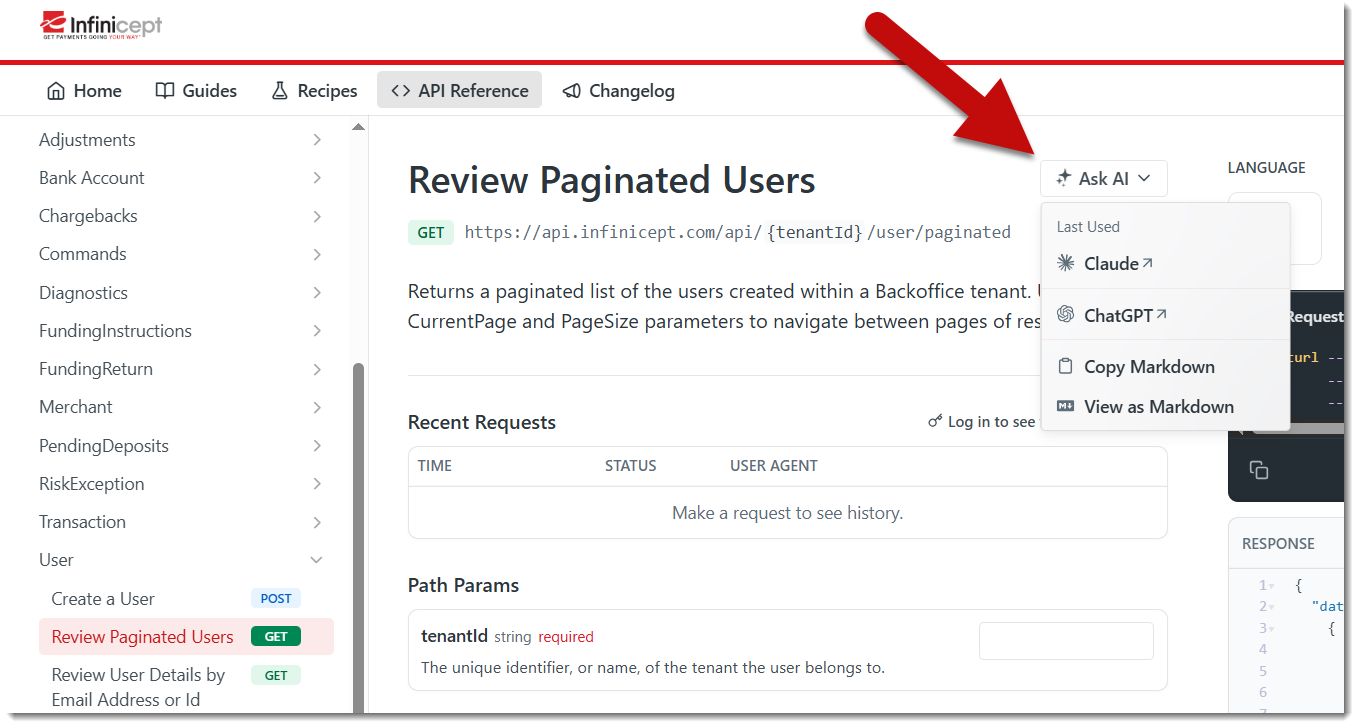
The AI Dropdown Menu includes the following options:
-
Open in Claude: Opens the page content in a new Claude conversation. Claude will have the full page content as context, ready for you to ask questions, request code examples, or analyze the documentation.
-
Open in ChatGPT: Opens the page content in a new ChatGPT conversation. ChatGPT will have the full page content as context for the same types of questions and tasks.
-
Copy Markdown: Copies the page content as Markdown to your clipboard. Paste this in any AI tool, code editor, or workflow of your choice.
-
View as Markdown: Opens the
.mdURL version of the page in a new browser tab.
Where to Find It
Look for the AI Dropdown Menu icon on any page in the Guides or API Reference sections of the portal.
How to Use It
No setup, configuration, or installation required.
To open a page in an AI tool:
- Navigate to any page in the Guides or API Reference section.
- Select the Open In AI Dropdown menu.
- Select Open in Claude or Open in ChatGPT.
- A new conversation opens with the tool and page loaded. Submit your question and see it respond.
To view or copy a page as Markdown:
- Navigate to any page in the Guides or API Reference section.
- Select the Open In AI Dropdown menu.
- Select View as Markdown.
- Copy the Markdown content and paste it into the AI tool or editor of your choice.
When to Use It
This menu is the fastest path from reading documentation to getting AI assistance. Use it when:
- You're reading a guide or endpoint reference and have a question about how it works.
- You want to generate a code snippet based on the endpoint you're viewing.
- You need to understand a request or response schema and want an AI tool to explain it.
- You want to copy the page content into a different AI tool, editor, or workflow as Markdown.
How Ask AI relates to other AI tools on the portalThe Ask AI menu works with one page at a time. For broader documentation discovery across the entire portal, see Using LLMs.txt. For interactive API endpoint lookups across all specifications, see Connect to the MCP Server.
Support
💬 Have a question? Contact us on the Customer Support Portal.
🔹 Learn about updates in our Changelog.
Updated 2 months ago