

HSA/FSA Transaction Prompts
Launchpay Orchestrate
HSA and FSA cards require a few additional steps on the PAX device. You will see prompts that do not appear during standard transactions. To process the payment, follow the steps below.
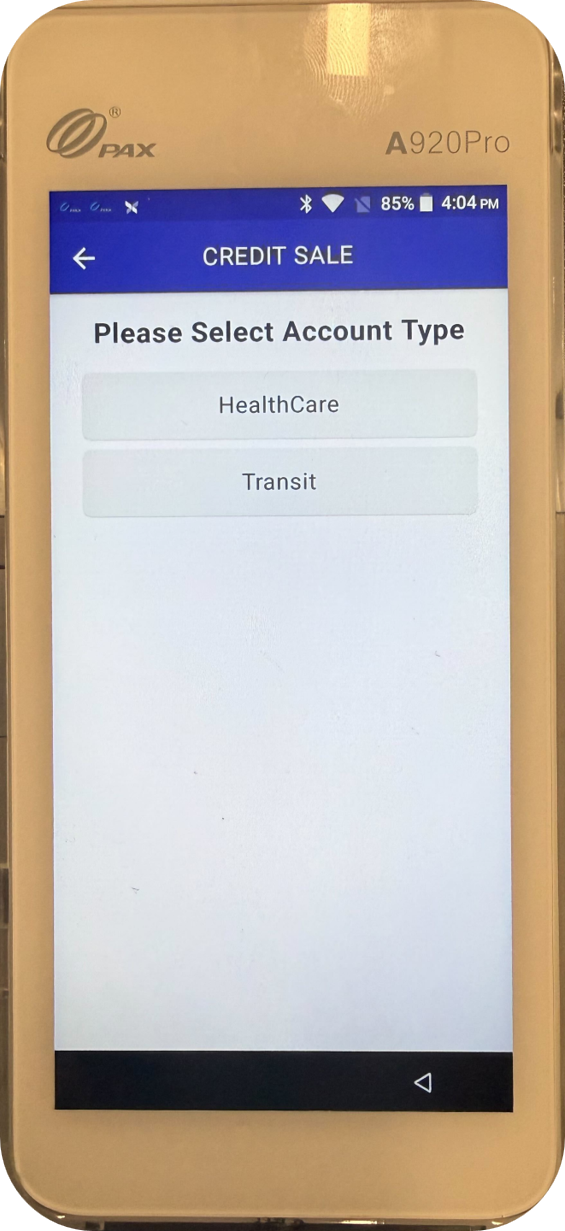
Prompt 1: "Please Select Account Type"
Action: Select HealthCare
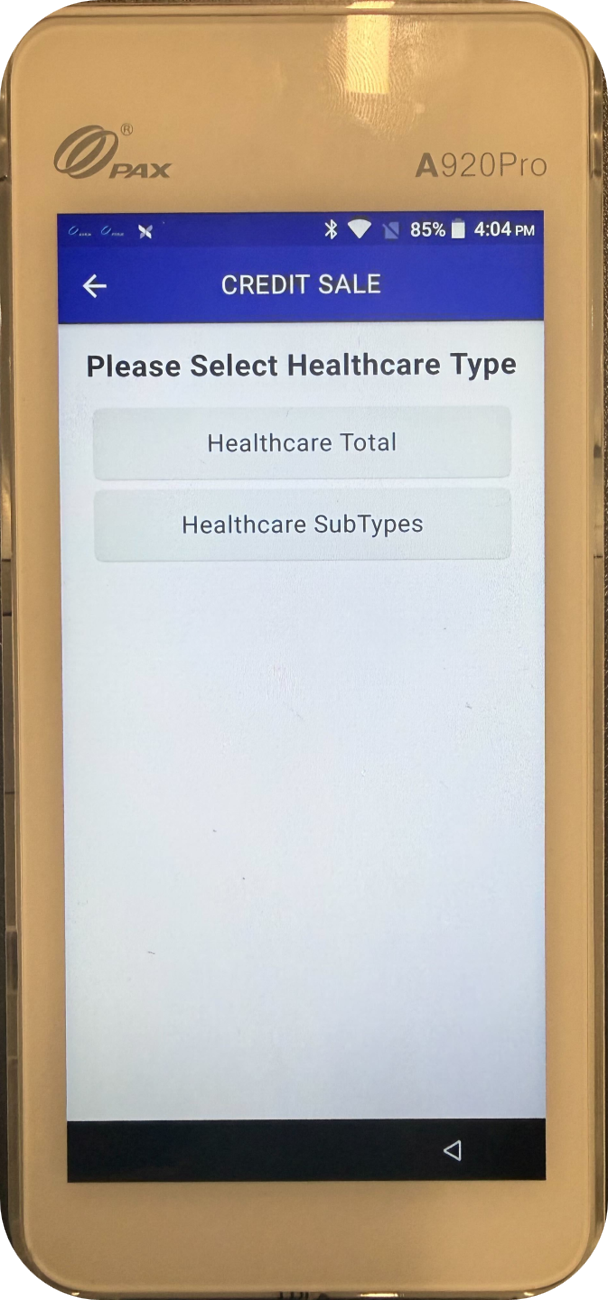
Prompt 2: "Please Select Healthcare Type"
Action: Select Healthcare Total
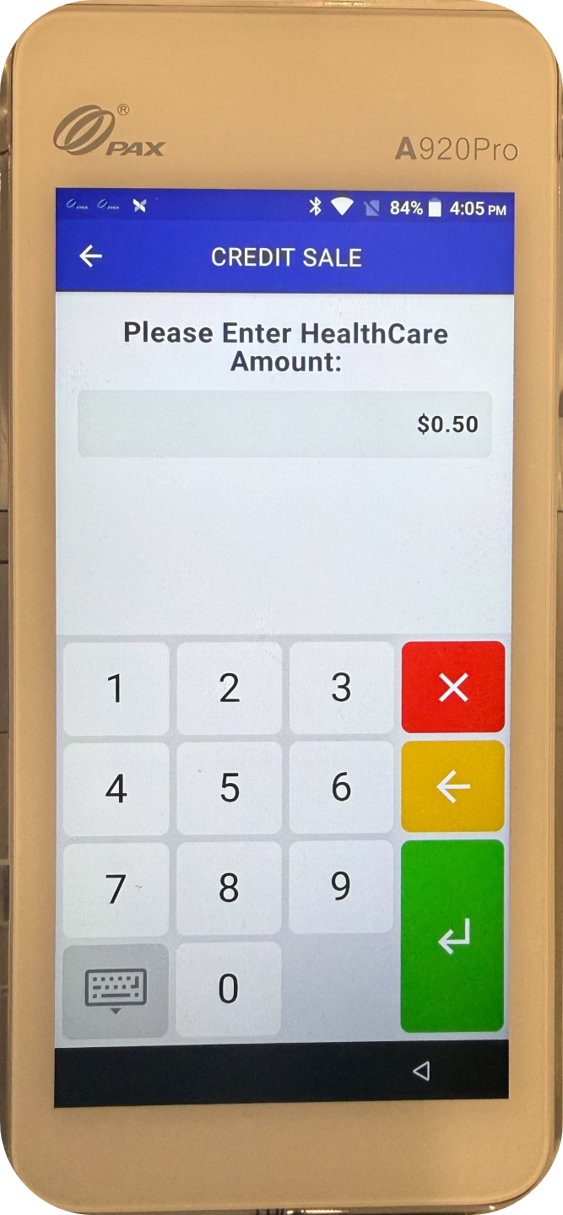
Prompt 3: "Please Enter HealthCare Amount"
Action: Key in the amount of the transaction and press the green enter key. The transaction completes and the transaction result appears on screen.
💬 Have a question? Send us your request on the Launchpay Support Portal.
-
When describing your issue, gather as much information as you can about the issue including Location ID, error messages, screenshots, and user details to expedite the support process.
-
To find the Location ID, open the QuickPoint app on the terminal, press and hold the SoftPoint icon at the bottom of the screen for 5 – 10 seconds, and select Get Help. The Location ID displays on screen.
-
For API integrations, please provide the API endpoint details (method and URL), request payload, and response received.
Updated 2 months ago